
Printing documents in the mobile app
In the Planado mobile app, you can create documents for a job, such as a contract or a completion certificate. The app fills in a prepared print layout with the job details to create the document.
Which print layouts are available in the app
The Documents tab shows the print layouts added to the job template that are enabled for printing in the mobile app.
An administrator configures these settings in the web app: Settings → Templates → the relevant template → Print layouts. In mobile app must be selected for the layout. For details, see Configuring a job print layout.
If the layout you need is missing, contact your administrator.
Creating a document
Open the job in the mobile app. If you have not started work yet, tap Start. Then go to the Documents tab.
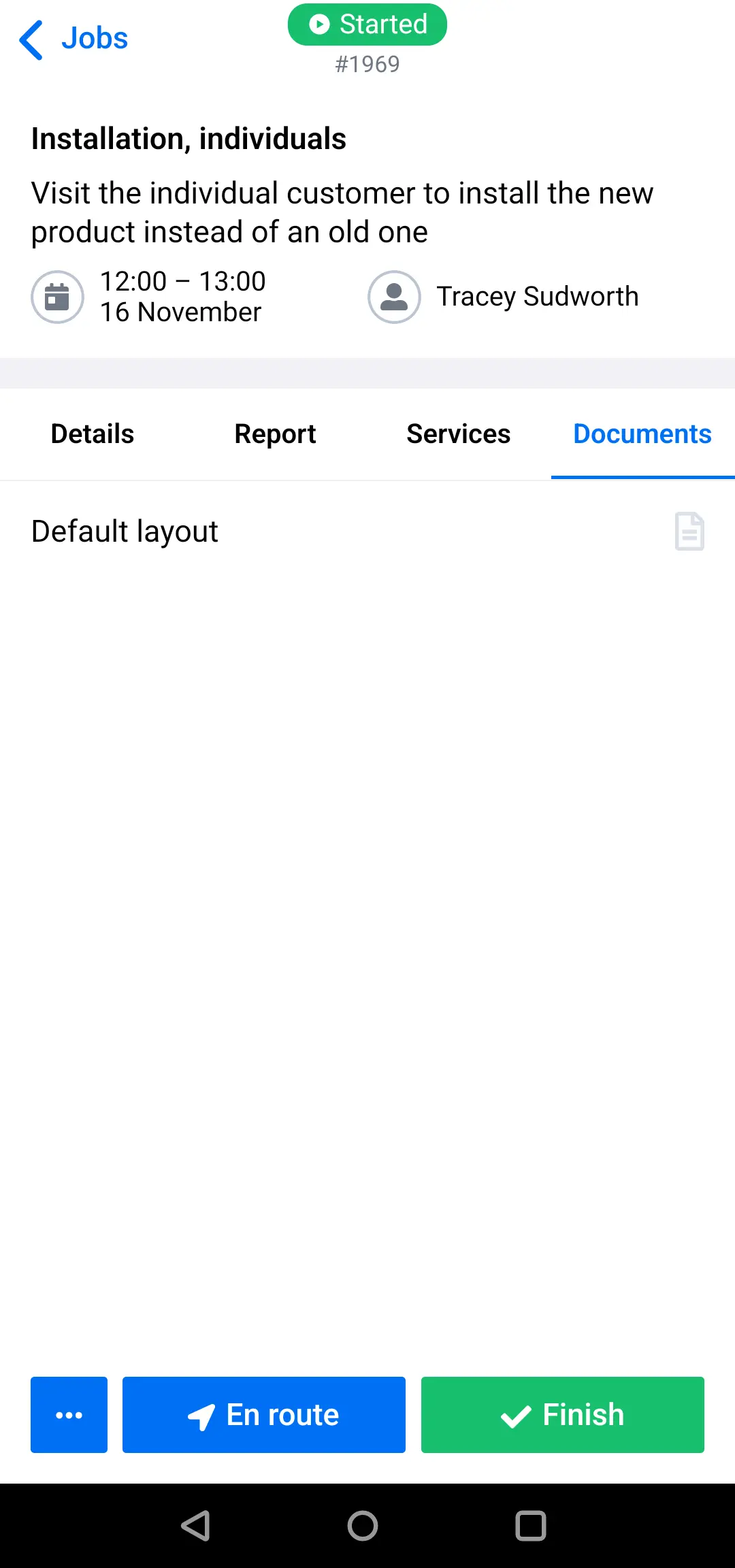
Tap the layout you need, such as Default layout, and confirm by tapping Create.
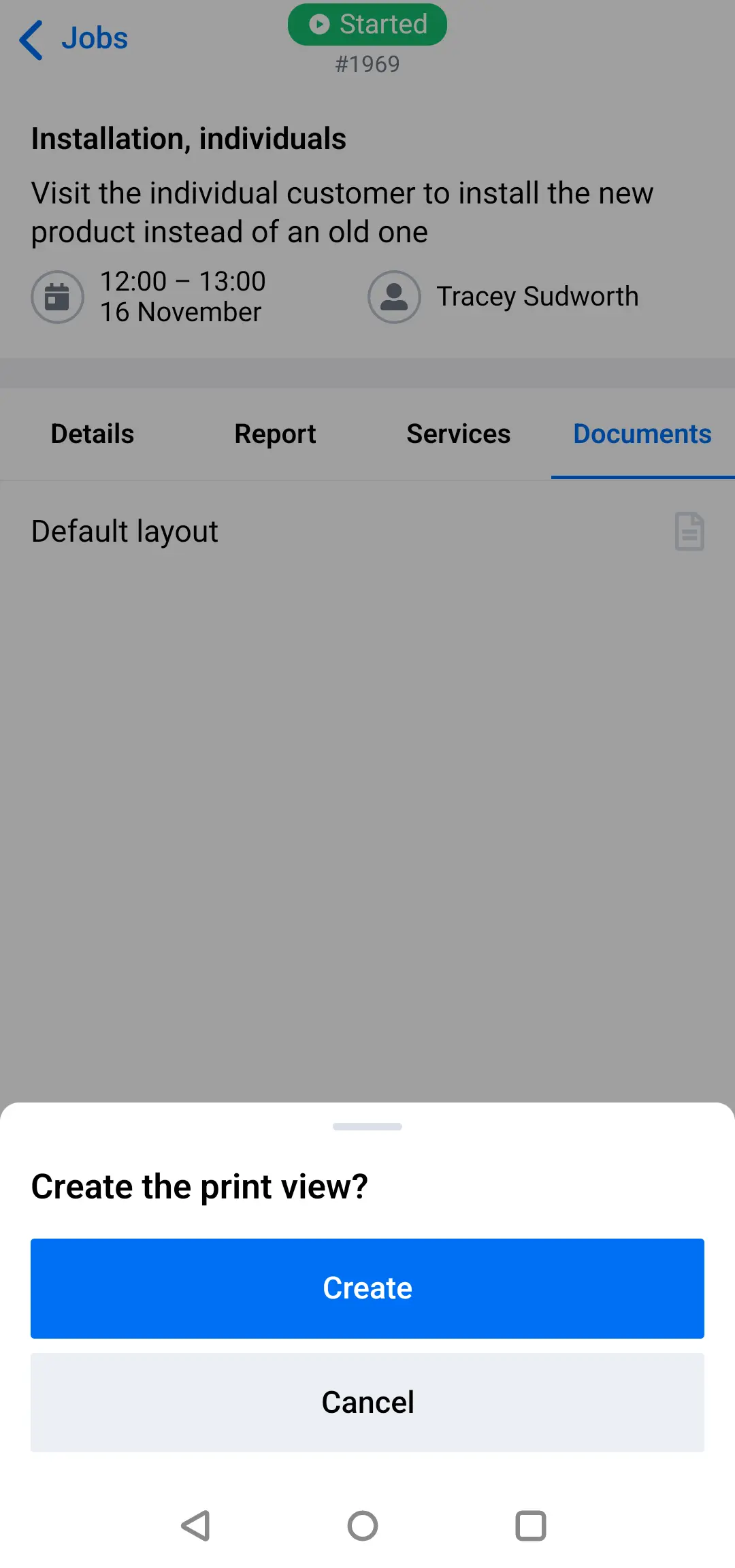
Wait for the document to be ready. It will open in the app.
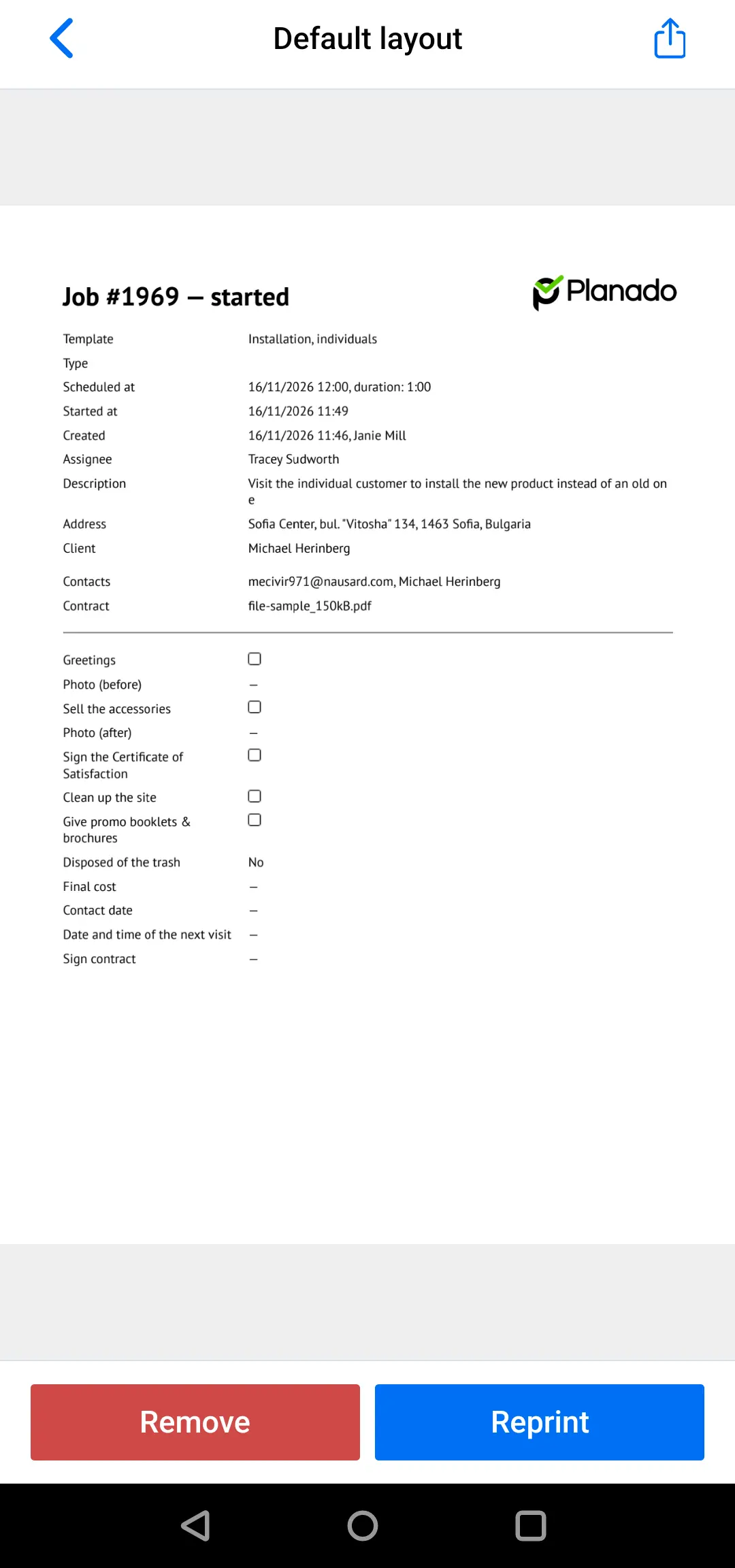
To send the file, tap the Share icon in the top-right corner and choose an app to send it with. You can review the document first; you do not have to send it as soon as it is created.
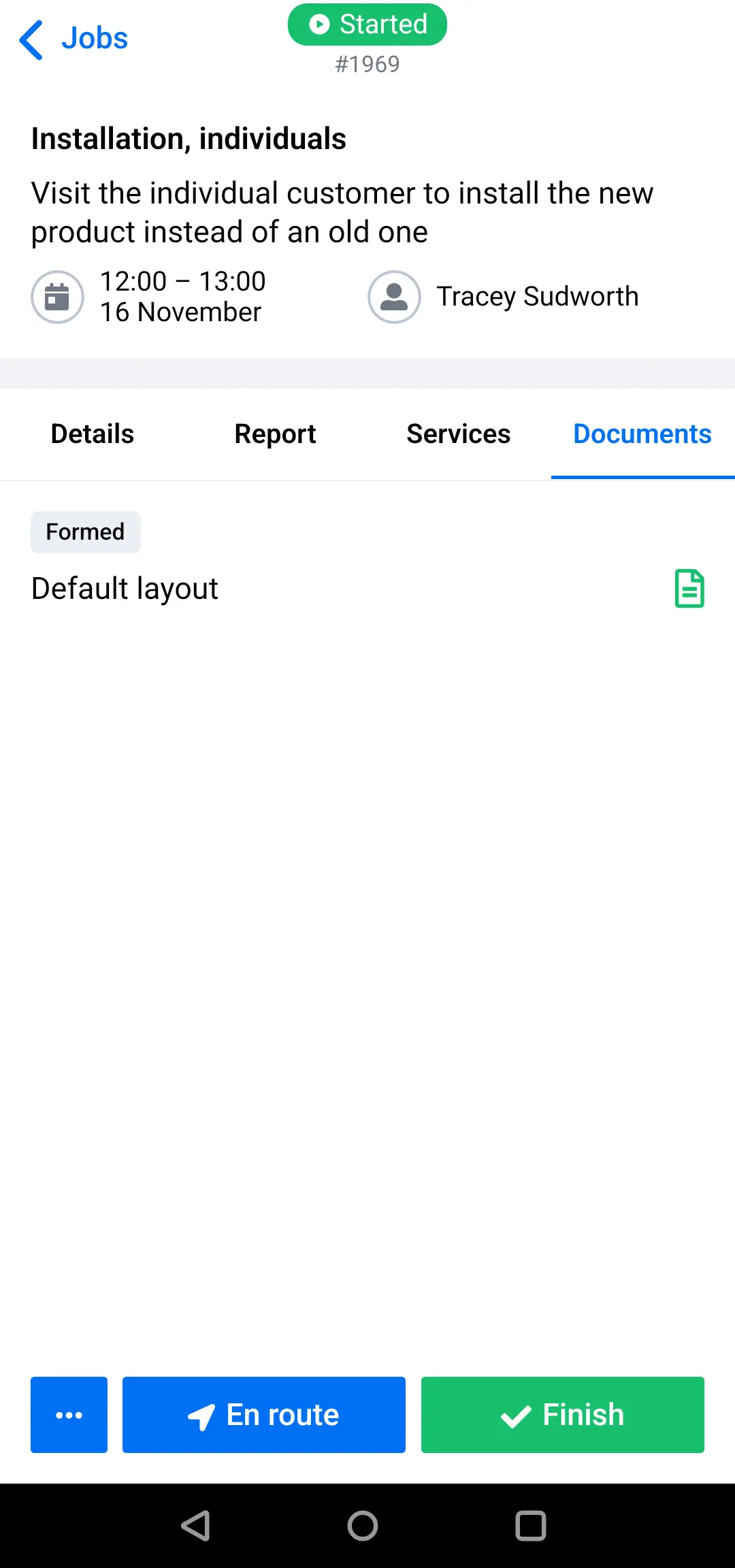
Go back to the Documents tab. The layout will be marked Formed. Tap it to open the document again.
Creating the document again
If the job details have changed, open the document and tap Reprint at the bottom of the screen. In the confirmation dialog, tap Reprint again. The app will create the document again using the print layout.
Required printing
An administrator can select Required for a layout in the template’s Print layouts section. In mobile app must be enabled first.
If printing is required, you cannot finish the job successfully without creating the document. Before finishing the job successfully, create the documents for all required layouts on the Documents tab.
Here, “printing” means creating an electronic document. You do not need to send it to a physical printer to meet this requirement.