
Sign in to the web app with a passkey
A passkey lets you sign in to the Planado web app quickly and securely using biometrics (Touch ID, Face ID, Windows Hello or Android screen unlock) or a hardware security key, such as a YubiKey, without entering your password.
Note: Your current Planado password remains valid. You can use it as a backup if you lose your device, and to confirm your identity when setting up a new passkey.
Add a passkey
Set up a passkey once for each device or platform you want to use.
Open the profile menu and select Passkeys.
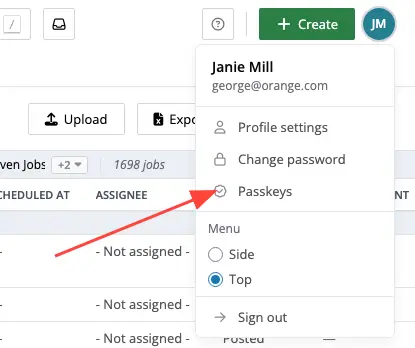
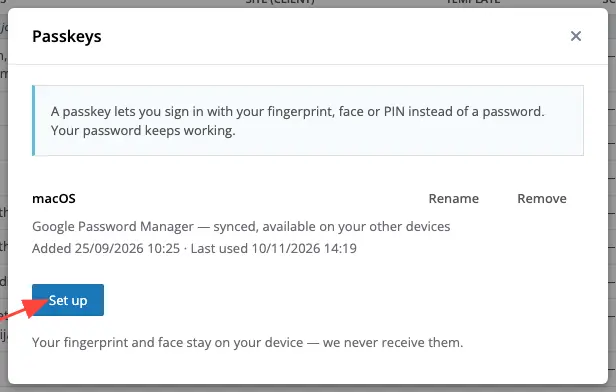
If you already have saved passkeys, click Set up to add another one. If this is your first passkey, the password confirmation form opens immediately.
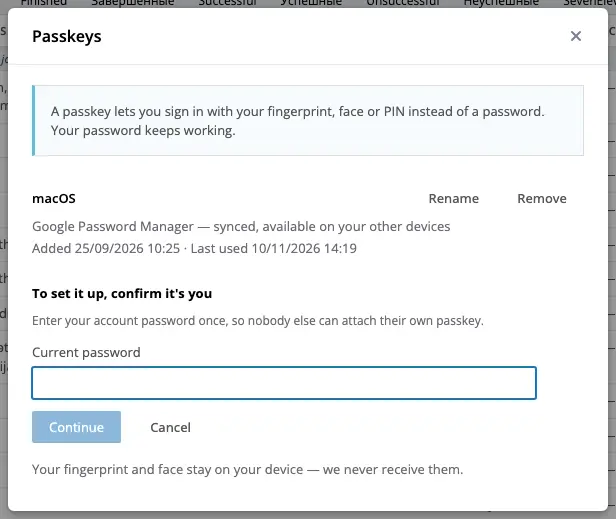
Enter your Current password for your Planado account, then click Continue.
Follow the browser or operating system prompt to choose where to save the passkey. Confirm with your fingerprint, face, device PIN or hardware security key, depending on your passkey manager.
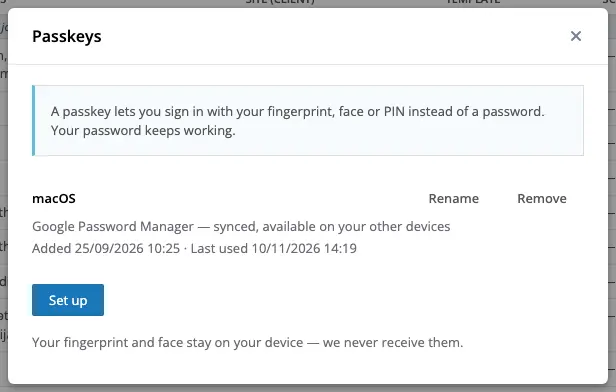
After setup, the passkey appears in the list with its name, provider (Apple Passwords, Google Password Manager, Windows Hello, YubiKey and so on), sync status and date added. You can change its name afterward.
Sign in with a passkey
Once you have added a passkey, you can select it from the browser’s autofill suggestions in the email or password field, or use Sign in without a password.
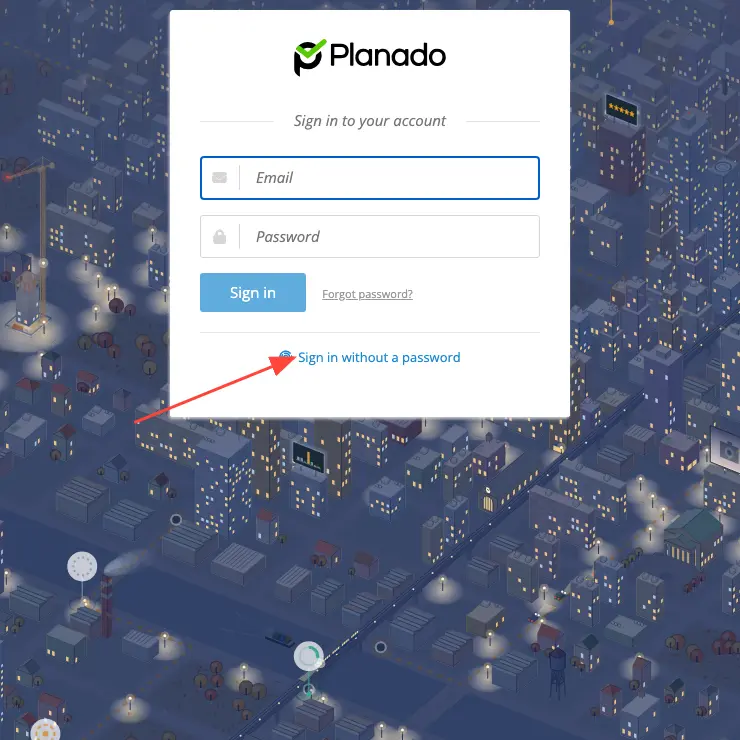
- Open your Planado sign-in page.
- Click the Email field or Sign in without a password.
- Select the saved passkey in the browser’s prompt.
- Confirm with biometrics or your device PIN. You do not need to enter your Planado password.
Manage your passkeys
You can manage your saved passkeys at any time in Profile menu → Passkeys.
- Rename: click Rename, edit the name in the list and save the change.
- Remove: click Remove next to the passkey and confirm.
- Details: view the provider, sync status and when the passkey was last used.
Useful to know
Security: signing in with a passkey creates a regular Planado session, retains your business unit and redirects you to the requested page. The sign-in event is recorded in the audit log with the method passkey.
Last used: each successful passkey sign-in updates the date of its last use in your profile.
If you have any questions about this or other Planado features, email our support team at support@planado.app.