
Create jobs from the mobile app
Employees can create jobs in the Planado mobile app when their roles or additional permissions allow it. The templates must also allow mobile job creation. Access may be inherited from a group.
Adding permission to create jobs from the mobile app to a worker
Open Settings → Users and select the employee. Assign a role that allows mobile access, such as Field worker, or check the access already granted by their roles and groups.
Under Additional permissions, click Edit. In Mobile application, enable Create jobs. Mobile sign-in must also be allowed; a permission already granted by a role is marked as such and cannot be removed in this dialog.
Click Done, then save the employee. If the required permission is granted by a role or group, you do not need to grant it again. You cannot grant access beyond your own permissions.
Ask the employee to synchronize the mobile app after saving. If the button has not appeared, reopen the app. See the roles and permissions guide for details.

Adding a template to create jobs from the mobile app
Workers are only able to create jobs from the templates that were configured for this. To do so, you first need to set up a template.
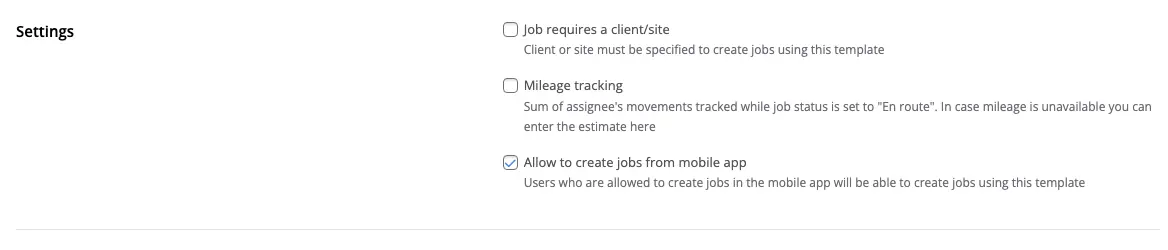
Go to Settings → Templates and select a template that you want your workers to use to create jobs from the mobile app. In the template settings menu check the "Allow to create jobs from mobile app" checkbox and save the template. After that, this template will appear in the mobile app of workers who have permission to create jobs from the mobile app.
Creating jobs from the mobile app
A worker with permission to create jobs from the mobile app will have the "Create" button in their mobile app. Tap this button to add a new job.

A list of templates will be opened. After you add a template that can be used to create jobs from the mobile app, it will appear here. Select a template from the list.

The job creation window will be opened. You can add a description, a scheduled date, an address, a flat, an entrance, a floor, and an address description to the new job. A worker can appoint themselves to be a job assignee or they can leave a job unassigned. If an assignee is selected in the job template, a worker can create a job with this assignee. Fill in the job fields with the necessary information and tap the "Create job" button.

The job will be added and a hint with its number will appear. If you tap on the hint, you will see the created job. If you have assigned yourself to this job, you will be able to start it.

If a job created from the mobile is canceled, it will be displayed as canceled in the creator's mobile app.

Job templates are described in the instruction.
If you have any questions about this or other Planado features, email our support team at support@planado.app.